
Karaoke is one of our consistently most-visited activities and is organized on the evening of every 3rd Friday (check our agenda). For this we use our own fork of the purpose-made software Performous. Like this, we can replicate the experience one would get in one of the many Karaoke joints in Japan.
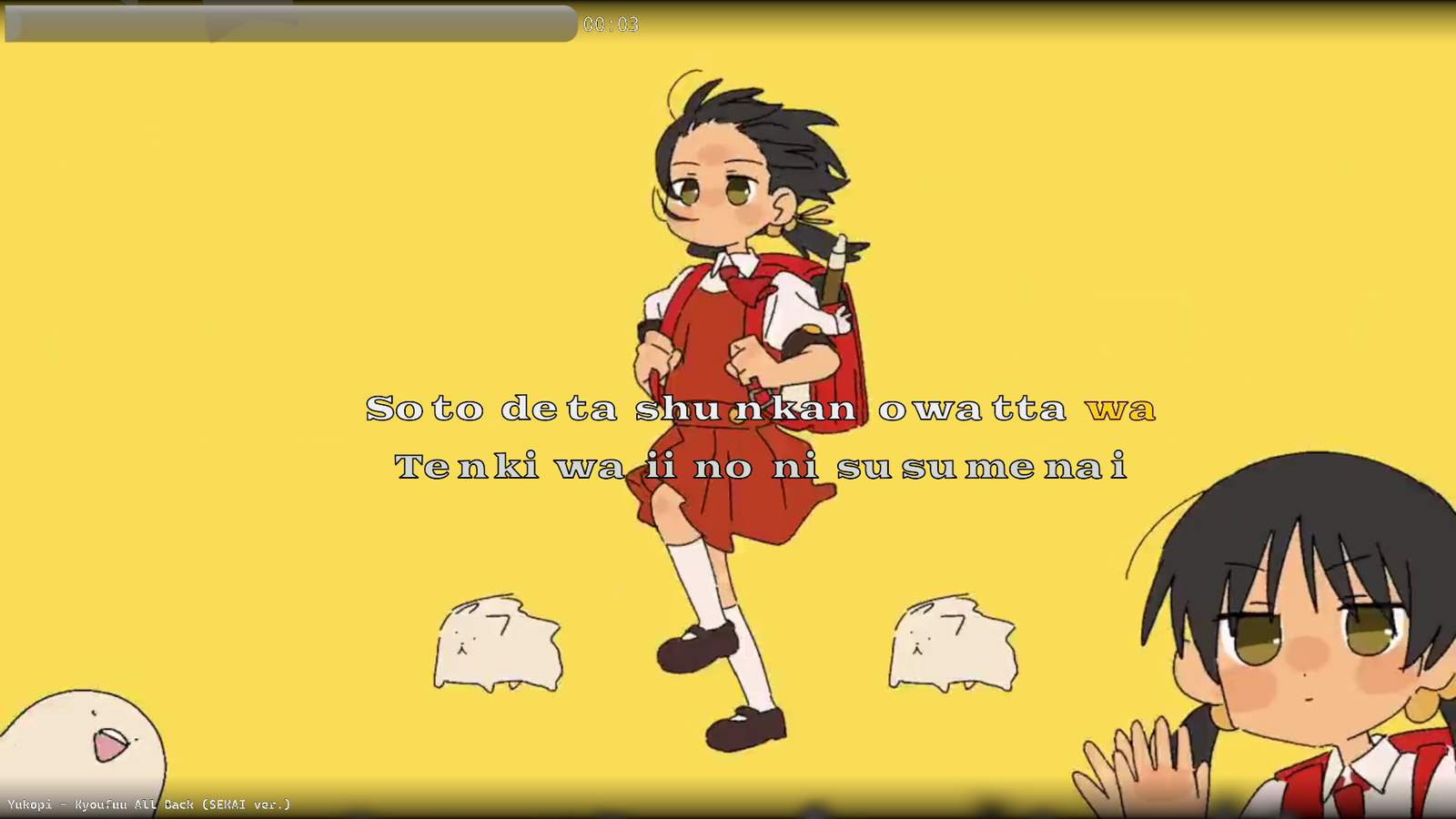
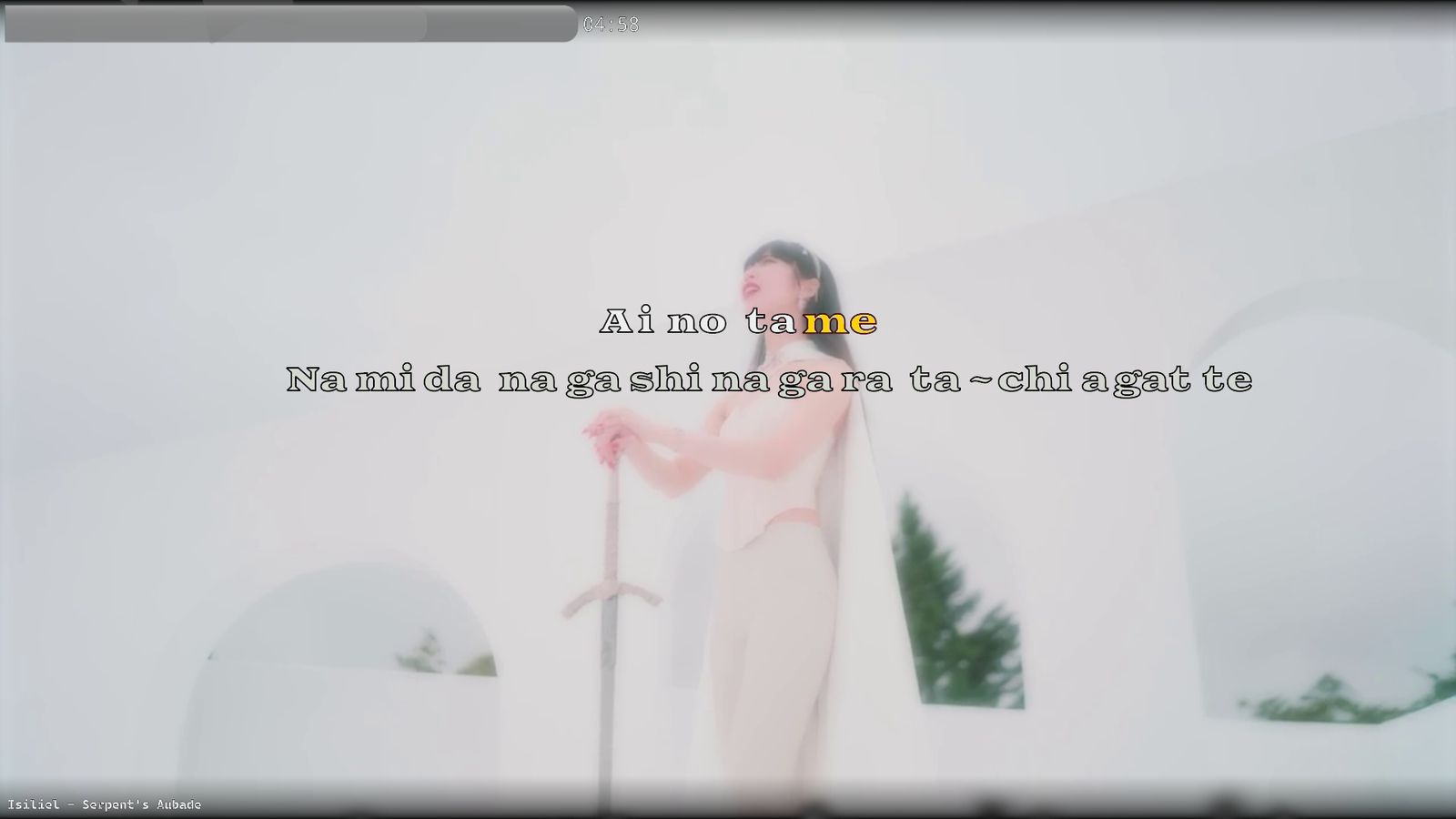
Of note are the individually split notes / syllables / morae and the highlighting of the currently active / sung word "wa".
This does require us to "time" our songs specifically for Performous, meaning we will not always have every song. Luckily, with currently over 7000 songs timed and ready to sing, there is definitely something for everyone. You can check out our database in the quick links section below.
If there is a song you feel is missing from the database, fret not — you can change that!
Software required
- Ultrastar-Creator (USC) for the rough timing
- Yass for refinement
- Performous for testing
Once all 3 are installed, we can move on to...
Files needed
- The audio for the song
- The lyrics of the song
- A video to show as a background video while singing
- A cover picture
- A background picture
Put all of these files together into one, otherwise empty folder for USC to detect.
Preparing to time
The lyrics of the song have to be formatted in a certain way for USC to see where to split the syllables you will later tell it when to play.
- Between every word there is a space ' '
- Between every syllable there is a '+'
- When a single syllable stretches across beats, or changes pitch, denote this using tildes '~'.
- Lines should neither be too long, nor too short. You'll get a feel for this in no time.
Following all of these rules will lead to your lyrics looking somewhat like this:
lyrics.txt Na+mi+da na+ga+shi+na+ga+ra ta+~+chi+a+gat+te
Ta+ta+kau
...which will end up looking like this once we're done:

Note the tilde (~), which we use to indicate that our example song changes pitch mid-way through the syllable "ta"
This will now more clearly read what is really sung, which goes more like "ta-↗a-chi-a-ga-tte".
Actually timing
Now that everything is in place, we can open up Ultrastar-Creator.
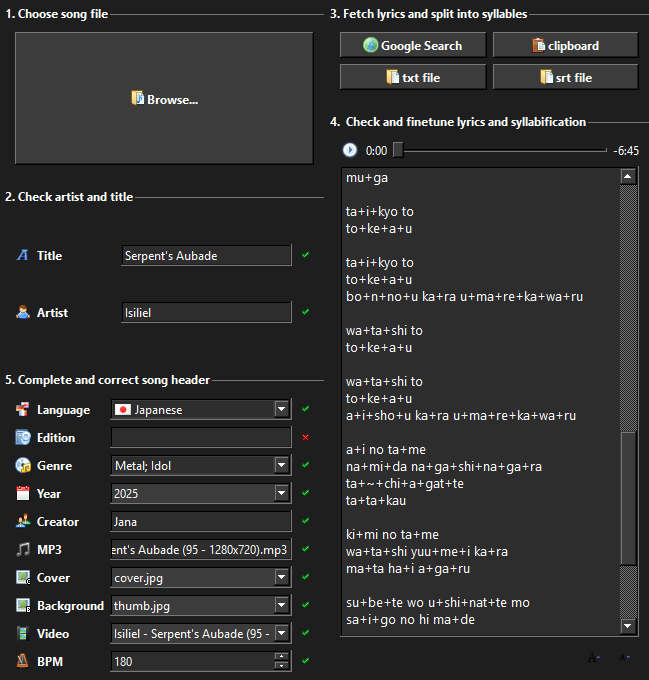
The very first thing you will have to do is to press the "Browse..." button in the top left. You will then have to navigate to the folder you just created and select the audio file (usually .mp3) for the song.
Once that is done, you can start filling in all the details. USC will automatically fill the Title and Artist fields, but they may be wrong so please double-check those. The same is true for the BPM field — USC tries its best to figure out the BPM from the file, but sometimes it will get it wrong and make it very annoying for us to time. Try to verify this value with something like a BPM tapper while you're listening to the song.
Use the Edition field to add extra information about the song. Possibly it is the OP or ED of an anime (and perhaps it's the TV length version); maybe it is part of the soundtrack of a video game; or perhaps it's a cover / parody of another song. All of these are useful bits of information for others to more easily find the song they're looking for!
Fill in your name under the Creator field – you'll be doing quite some work so give yourself credit! ( •̀ ω •́ )
Refining
Unfortunately, if you were to open up Performous right now and try out your newly timed song, things would still be quite off.
This is where we have to open Yass. In Yass, you have to first select the folder that contains all your Karaoke song folders. After that you can use the search function to look for any songs you have already timed in USC. It will automatically detect any .txt file in the UltraStar format.
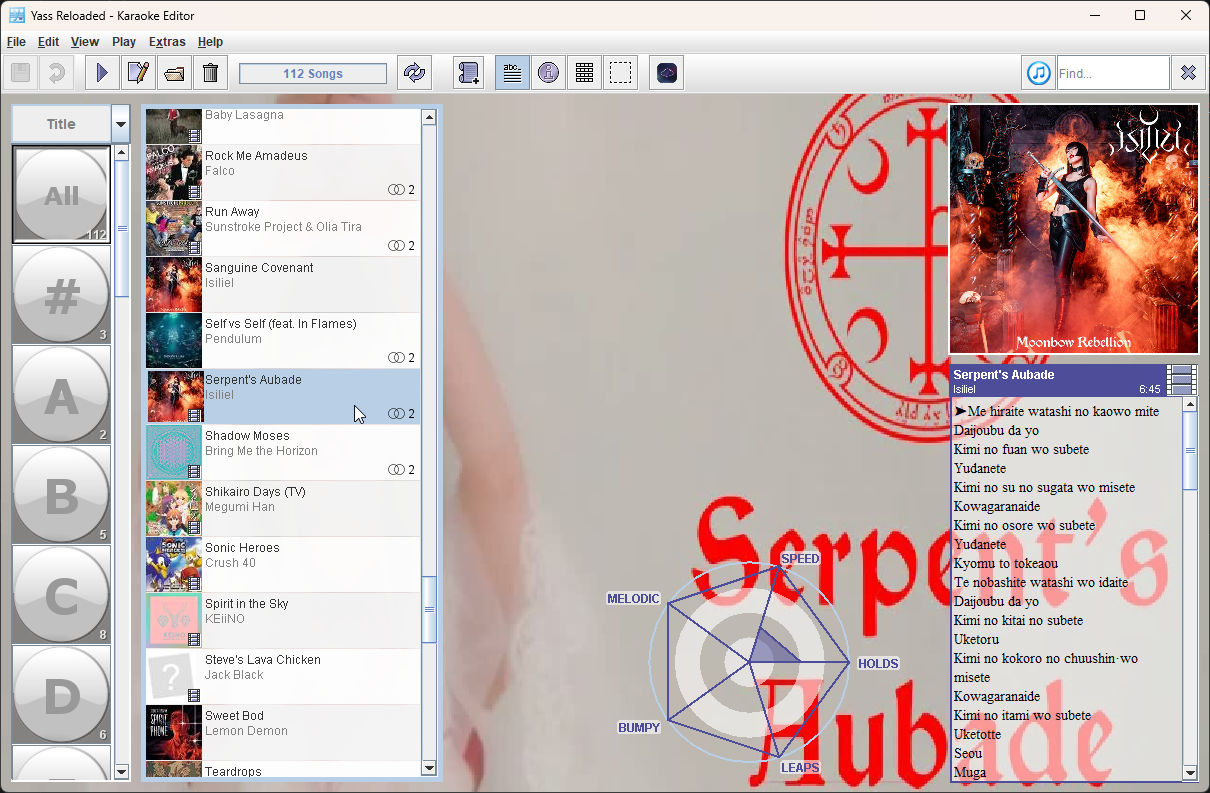
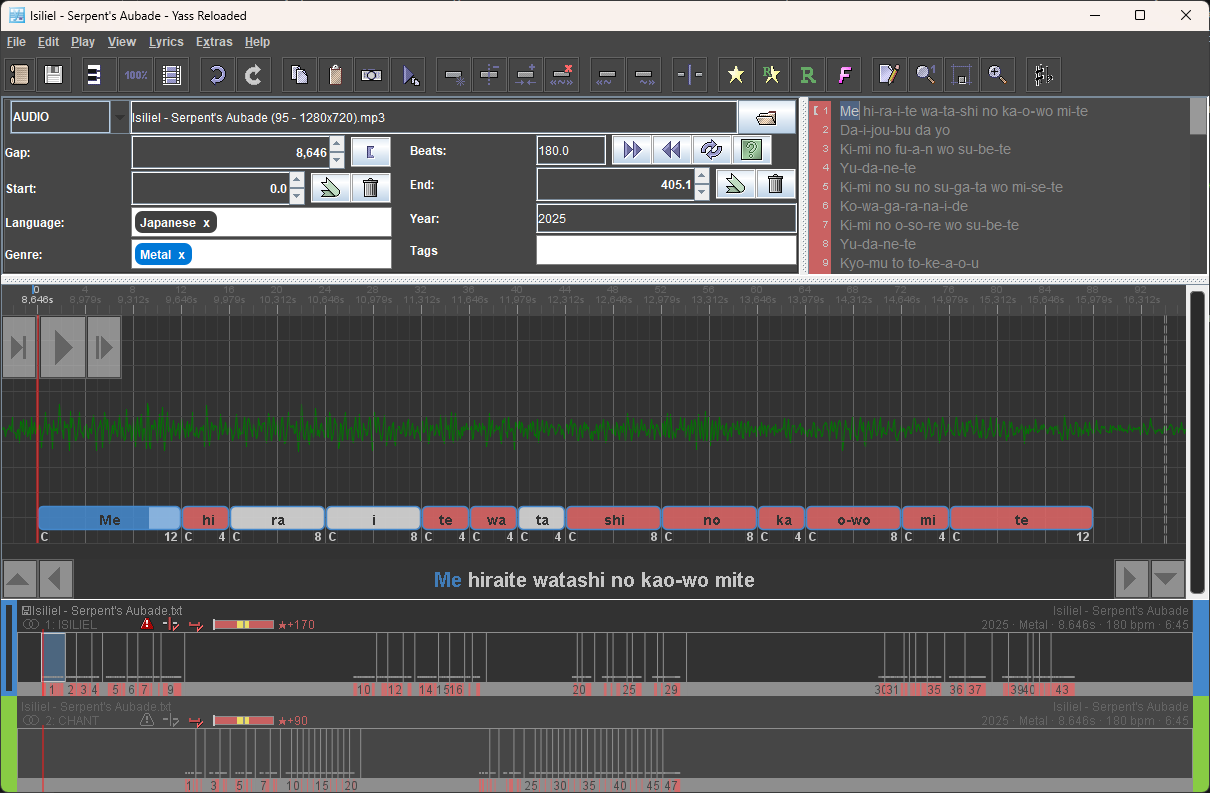
Once you're in the main screen of Yass, we will want to fix our tapping inaccuracies. This is also where you really want your BPM you've set in USC to be correct. We will have to move the individual syllables / morae within each bar of the song. If the song you chose to time is not an arythmic mess, your syllables will tend to look quite tidily aligned with the bars given on screen! There is no need to pay attention to the pitch, since that won't matter at Uta-jin either.
Important tip before you start refining!
Yass is an infuriatingly terrible piece of くそ software. It's made in Java, which for some reason means that it has to crash or lock itself into unrecoverable software states, seemingly at random.
Make absolutely 100% sure that you save frequently using the quick shortcut CTRL + S.
Otherwise you may lose a lot of time and effort spent on something that was supposed to bring you joy!
Yass can be a quite unstable software. From Uta-jin's experience, it has a tendency to crash or lock itself into unrecoverable software states. The causes can feel very random, so even if you're only doing light work, we'd like to recommend you save frequently. This can be done with the shortcut CTRL + S, and is also quite good practice when working with other software! (- ω -、)ヾ( ̄ω ̄; )
This way, you can avoid losing a lot of time and effort spent on something meant to bring joy!
As for some basic controls: You can use the arrow keys to move to the next note, SHIFT + arrow keys to move the note, and ALT + arrow keys to extend or shorten it.

The bottom version is how your freshly timed song may come out looking, since neither we, nor our spacebars, are perfect. Basically, we'd like our lyrics to look more like the version at the top of the image, where each note is placed correctly with the starts and ends aligned to the music.
Once you are done refining, you can finally open Performous. Make sure your file paths are also set correctly here. For this, you can go into the Config→Paths options menu and select your Karaoke root folder.
At long last, hit Perform and select your newly-timed song. Enjoy!
'/%3e%3c/svg%3e) @jces_kinjin
@jces_kinjin  JCES Kinjin