
Agenda
You can also subscribe to this calendar through your own Calendar app!
Read more below to see how you can do that depending on which provider you use (✿◡‿◡)
Read more below to see how you can do that depending on which provider you use (✿◡‿◡)
In the calendar widget above, look in the bottom left corner. There, you should be able to press "Add to Google Calendar", which will then allow you to subscribe directly through your Google account.
If you're on your phone, this may instead be a small "+" icon in the bottom right corner of the widget.
And that's all there is to it, you'll be able to see all Kinjin events!
For these other ones, you will need the "update URL" of the calendar itself. It's important that you don't open the link directly. If you just import the ics file, it won't work!
calendar-url
https://calendar.google.com/calendar/ical/c_2f8474aff283a922082296eb46556eb07d0cc5e8b67abe19e790fcf8e590abfa%40group.calendar.google.com/public/basic.icsApple's Calendar lets you add a URL subscription through the app.
- Open the Calendar app
- Tap "Add Calendar" in the bottom-left corner
- Select "Add Subscription Calendar"
- Enter the URL of the calendar from above
- Press "Add" in the top-left corner, then "Done"
- Done!
Outlook offers a URL subscription option, so we'll be using that! 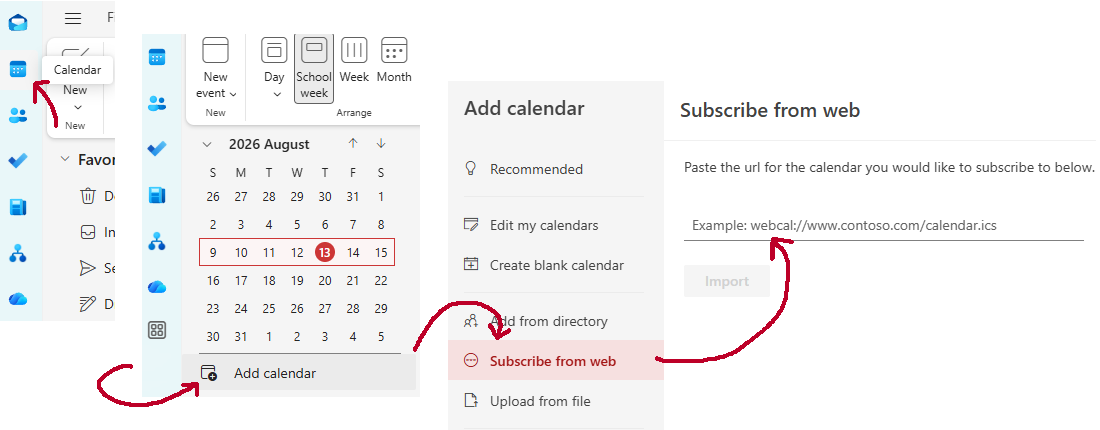
- In Outlook, go to your calendar
- Click on "Add calendar"
- Select "Subscribe from web"
- Enter the URL of the calendar from above
- Press "Import"
- Done!
Proton makes adding a calendar through a URL quite quick and easy: 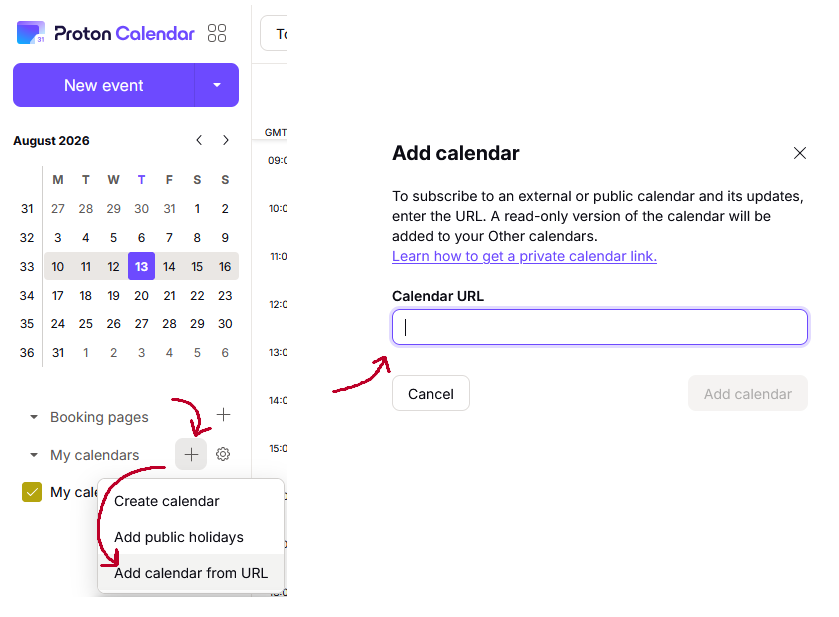
- In Proton, go to your calendar
- Click on the "+" next to "My calendars"
- A drop-down will pop up, select "Add calendar from URL"
- Enter the URL of the calendar from above
- Press "Add calendar"
- Done!
'/%3e%3c/svg%3e) @jces_kinjin
@jces_kinjin  JCES Kinjin